Creating Your First Stencil
Step-by-step guide to transforming your artwork into a print-ready tattoo stencil
Creating Your First Stencil
Upload Your Image
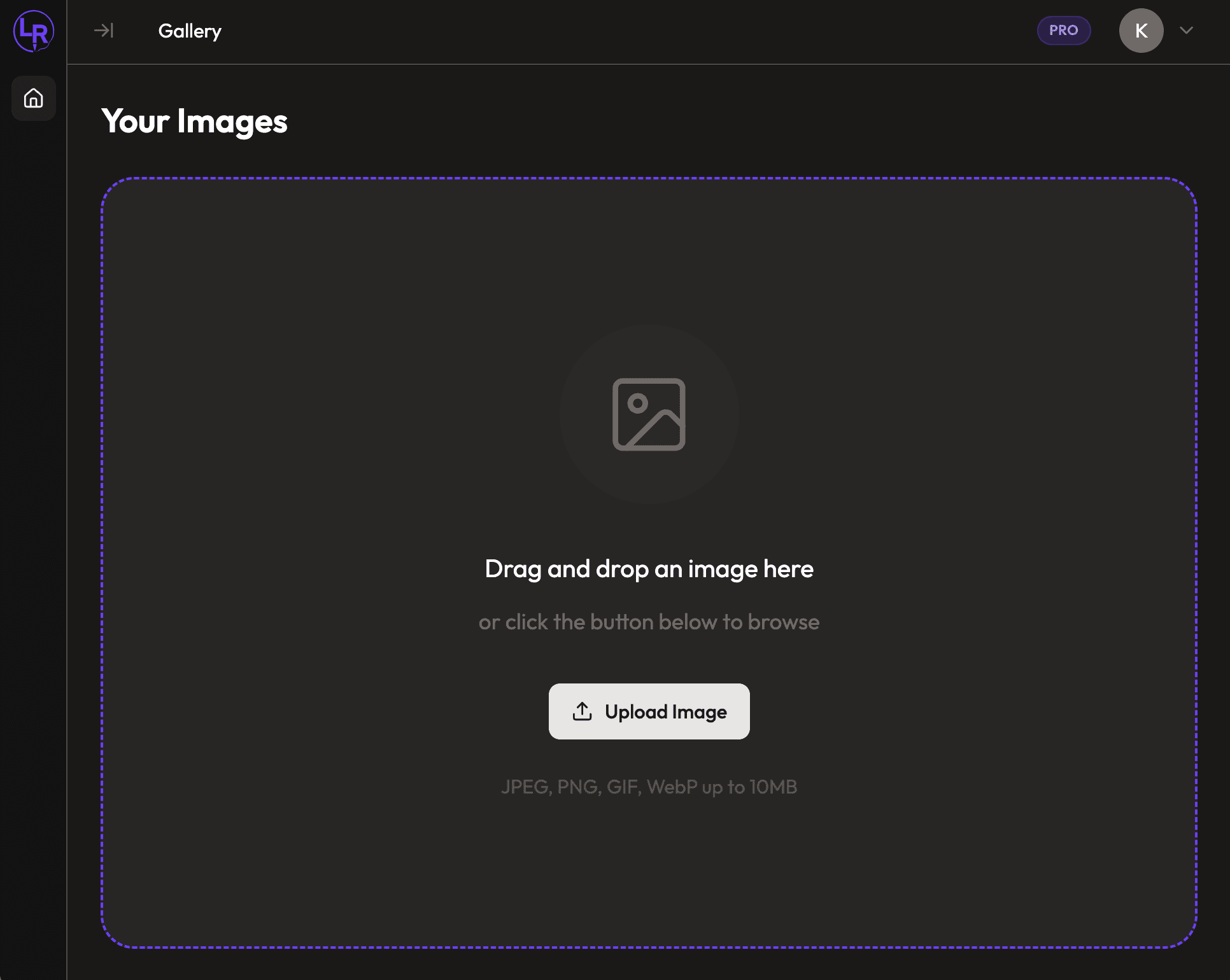
From your dashboard, upload your artwork:
- Drag and drop an image onto the upload area, or
- Click "Upload Image" to browse your files
Supported formats: JPEG, PNG, GIF, WebP (up to 10MB)
Generate Your Stencil
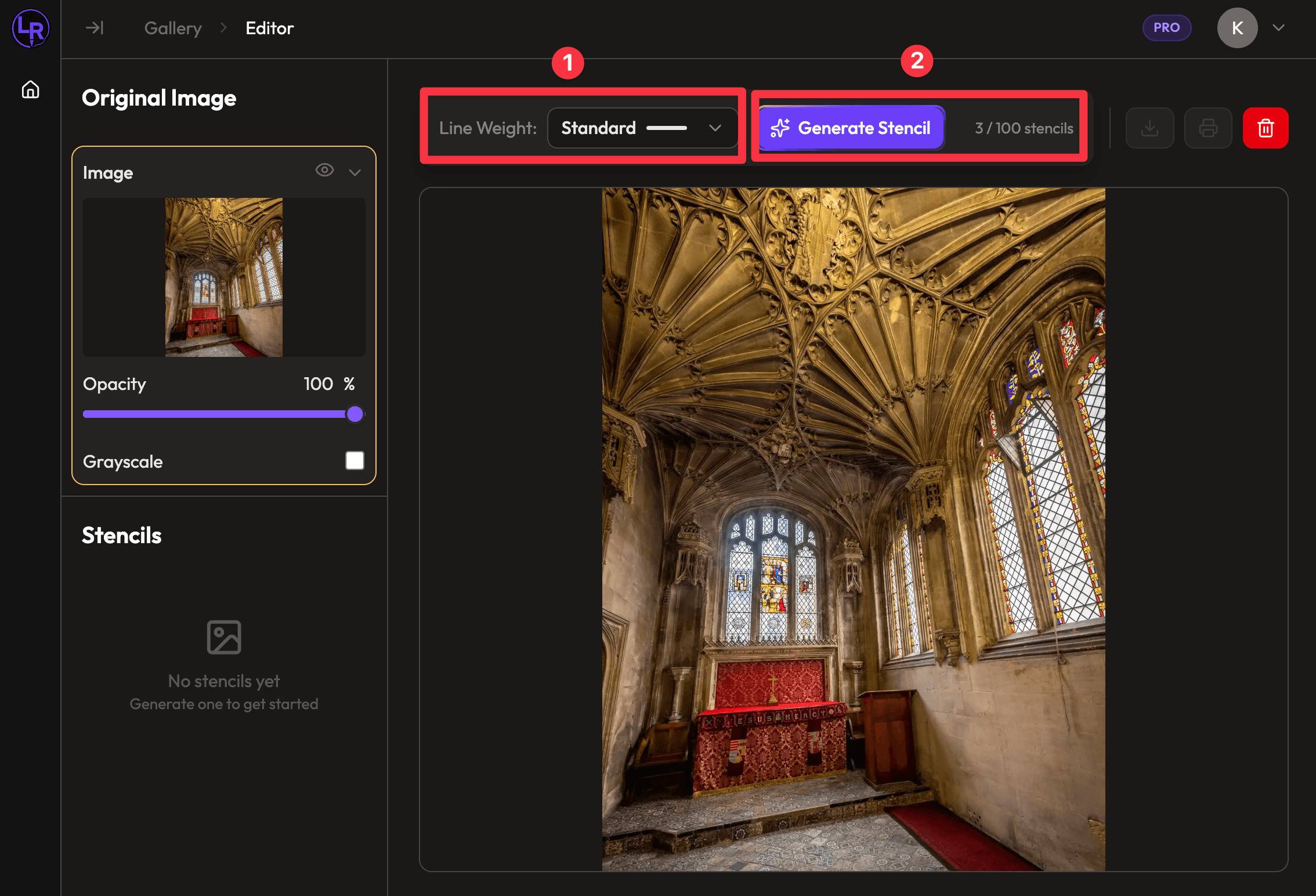
Once your image loads in the studio:
-
Select Line Weight - Choose how thick the stencil lines should be:
- Delicate - Fine, detailed lines
- Thin - Light line work
- Standard - Balanced (default)
- Thick - Bold, heavy lines
-
Click "Generate Stencil" - The button with the sparkles icon
Wait for the AI to process your image. You'll see a shimmer animation while it works.
Upscale (Recommended)
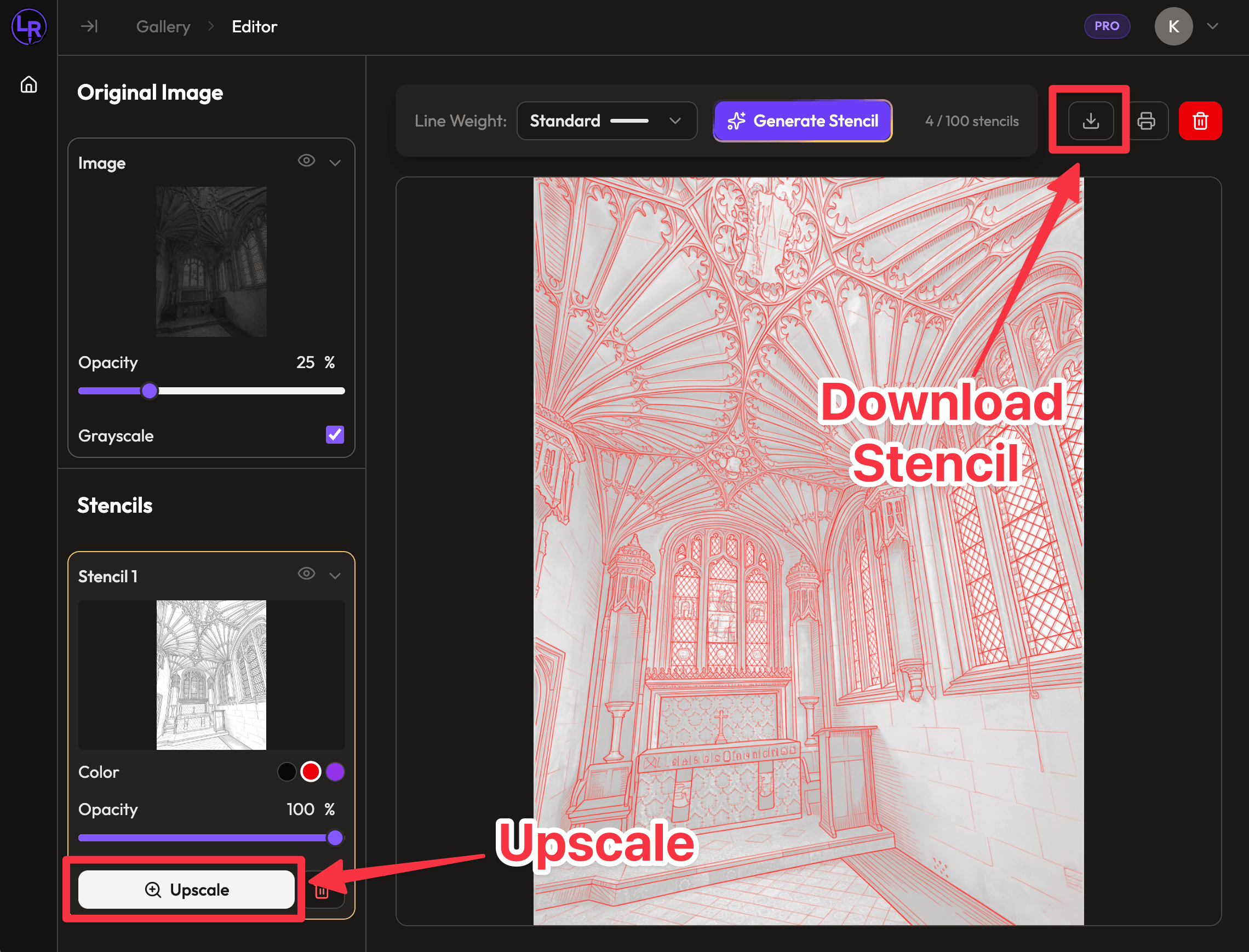
For higher quality prints, upscale your stencil:
- In the Layers panel, expand your stencil layer
- Click the "Upscale" button
This doubles the resolution for sharper output. Each stencil can only be upscaled once.
Compare Stencil to Original
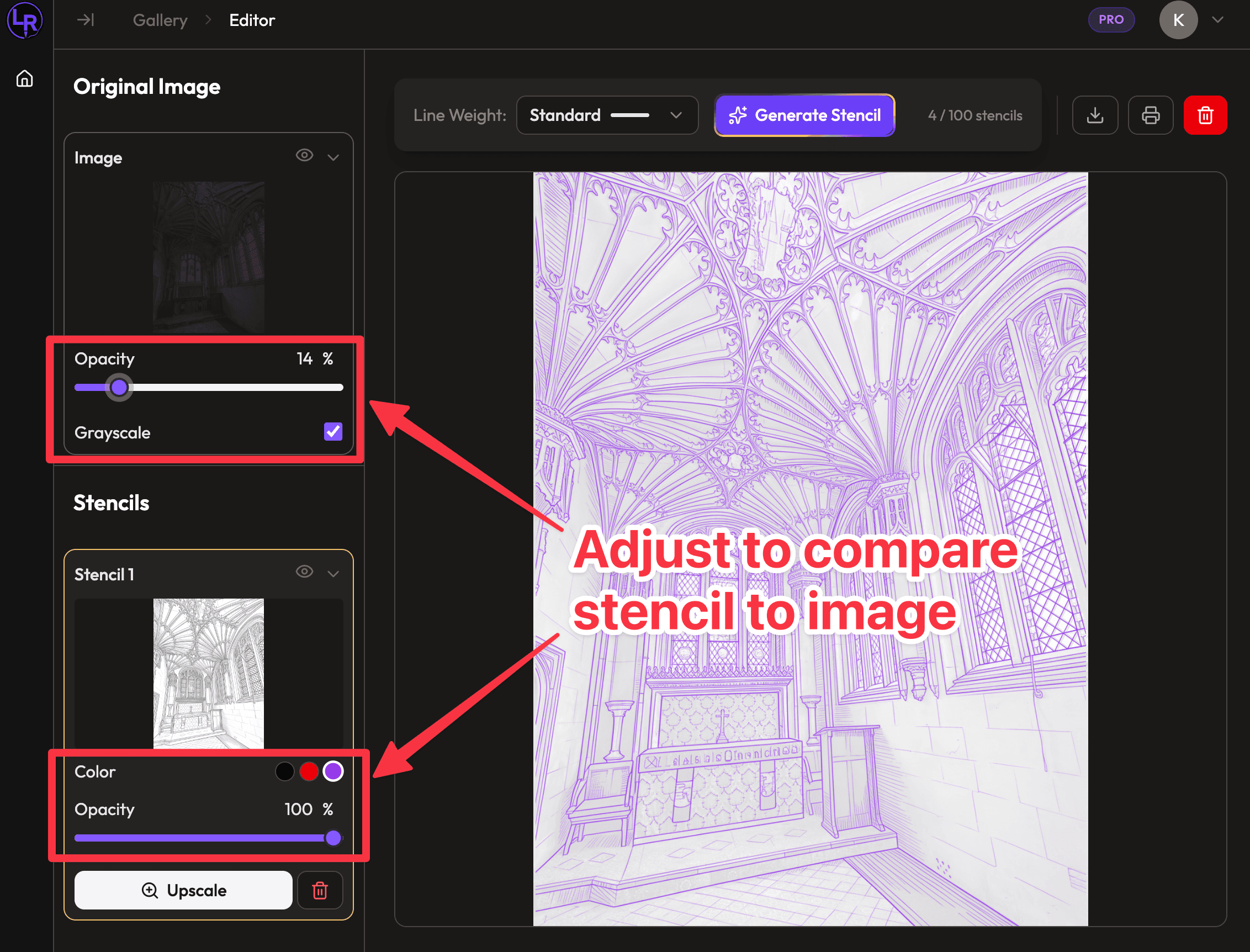
Fine-tune your stencil by comparing it to the original:
Adjust Stencil Color
Choose a color that stands out against your original image:
- Black - Classic stencil look
- Red - High contrast for dark images
- Purple - Alternative high-visibility option
Control Opacity
Use the opacity sliders to blend layers:
- Stencil opacity - Fade the stencil to see through to the original
- Original opacity - Dim the original to focus on stencil lines
Toggle Grayscale
Check "Grayscale" on the original image to better evaluate line work without color distraction.
Generate Variations
Not happy with the result? Generate another version:
- Adjust the Line Weight if needed (try thicker or thinner)
- Click "Generate Stencil" again
Each generation creates a new stencil layer. You can:
- Toggle between versions using the eye icon
- Compare different line weights
- Keep your favorite, delete the rest
Even generating with the same line weight produces variations - the AI interprets your image differently each time.
Download Your Stencil
When you're satisfied with your stencil:
- Make sure only the stencil you want is visible (use the eye icons)
- Click the Download button (arrow icon)
Your stencil downloads as a PNG file, ready for printing.
Tips for Best Results
- High contrast images work best - clear distinction between subject and background
- Start with Standard line weight and adjust from there
- Upscale before downloading for print-quality resolution
- Use the red or purple overlay when your original has dark areas